
1. Overview
This guide explains how to connect an OSDP keypad (ex. Cidron) to the PWRCAN module using RS485.
- DIP switch configuration
- RS485 activation
- Power setup
- Wiring
2. Required Components
- CoreS3
- PWRCAN module
- Cidron OSDP keypad
- Dedicated power supply for keypad (12V, 2A)
- RS485 wiring
3. PWRCAN Configuration and Schematic
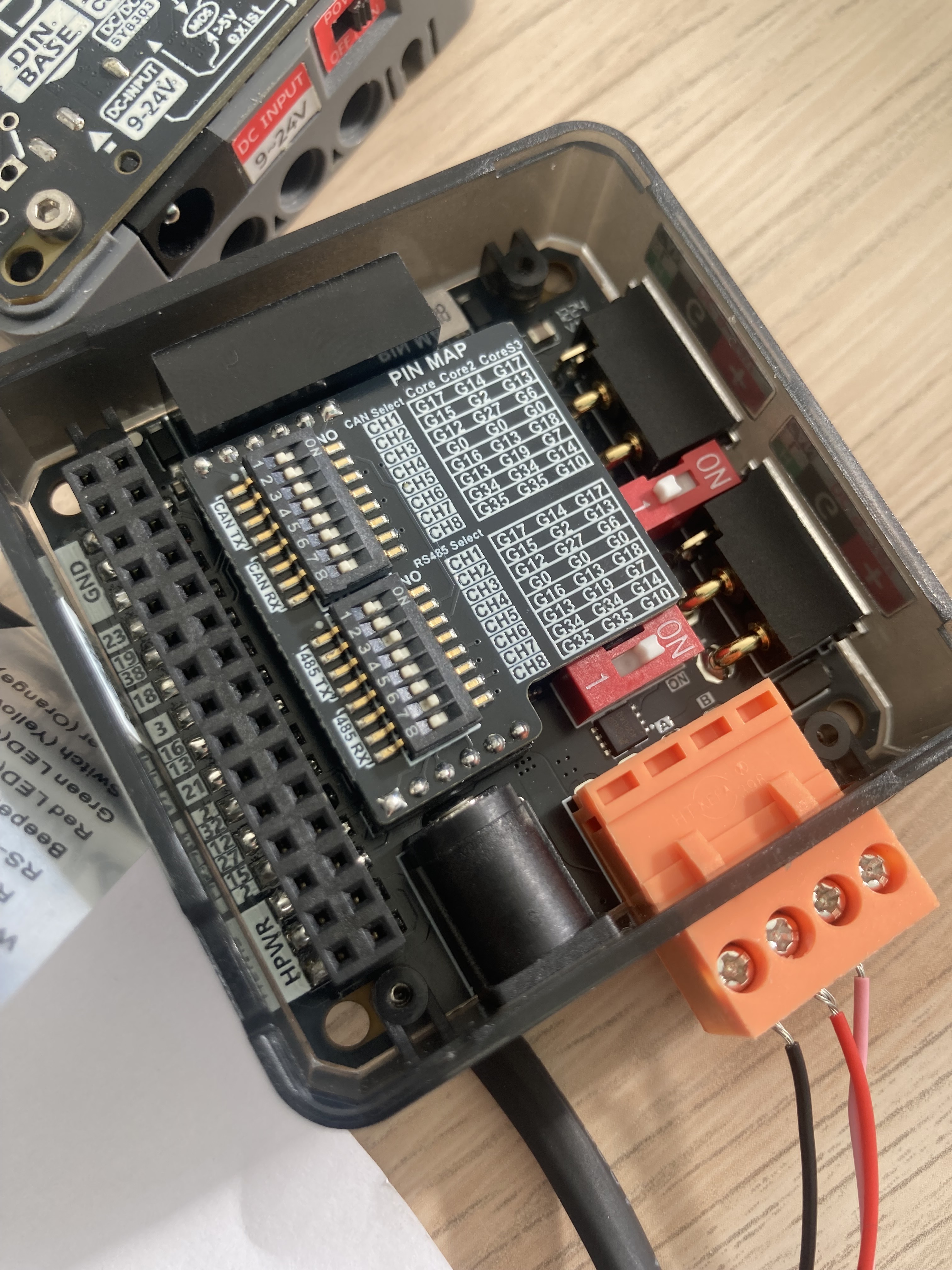
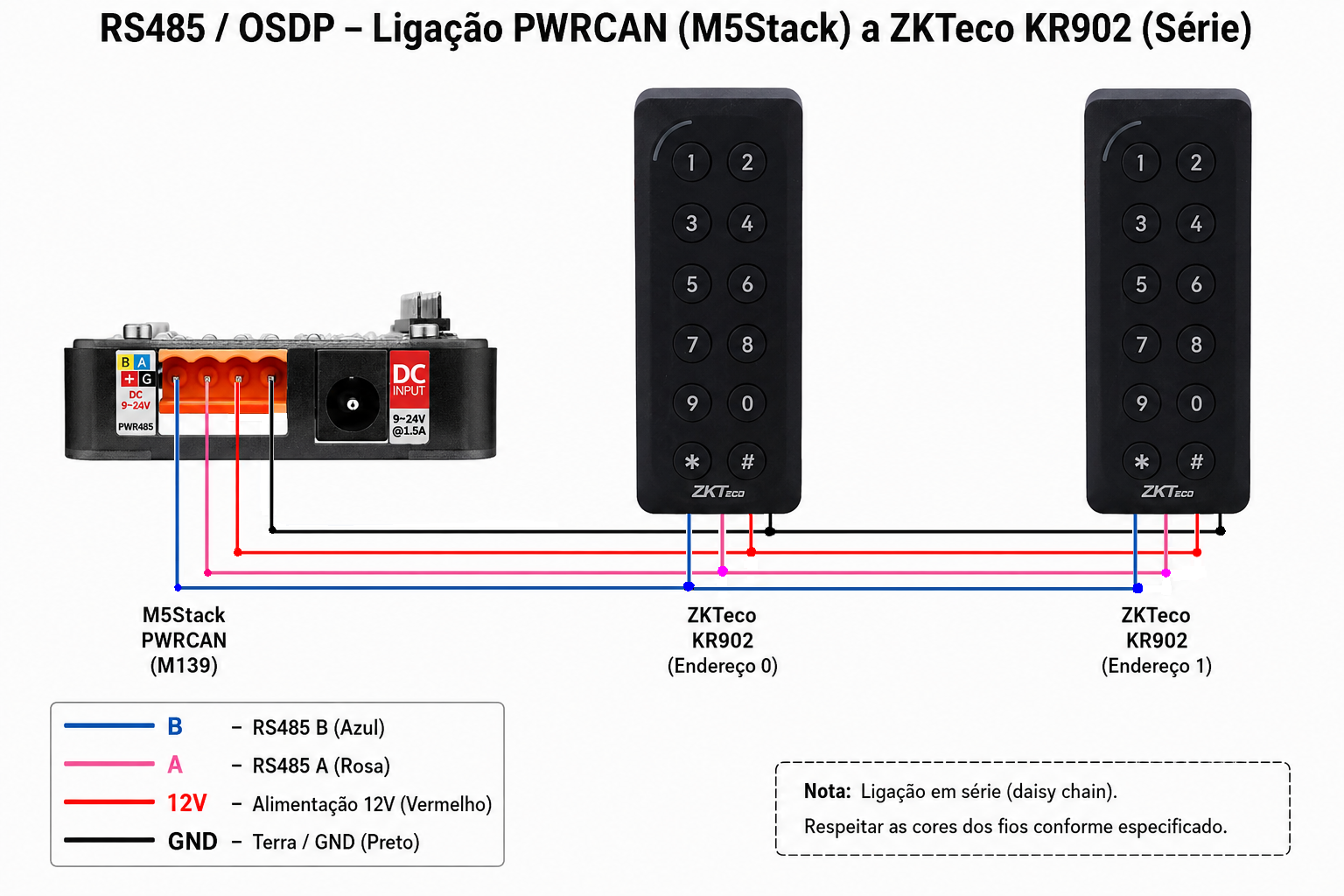
3.1 DIP Switch Setup
Activate the following DIP switches in the RS485 section:
DIP 3 → ON → G6
DIP 7 → ON → G14
3.2 Enable RS485
RS485 switch → ON
3.3 Switch number of keypads inside of ZKTeco
ZKTeco KR902 - switch 0
ZKTeco KR902 - switch 1
ZKTeco KR902 - switch 2
etc...
4. RS485 Wiring
| PWRCAN | Cidron Keypad |
|---|---|
| A | A / TX |
| B | B / RX |
| + | DC+ |
| G | GND |
5. OSDP Communication Notes
- Protocol: OSDP over RS485
- Check keypad address. The "Cidron" keypad must programmed before to use OSDP and to have address 0.
6. Quick Summary
PWRCAN → Cidron

A → A/TX
B → B/RX
+ → DC+
G → GND
DIP switches:
3 = ON (G17)
7 = ON (G14)
RS485 = ON